Workbench registration
One of the best ways of adding large-scale new functionality to FreeCAD is to create a custom Workbench. In FreeCAD terminology, a Workbench is a collection of commands, menus, toolbars, and task panels all oriented towards a specific task. Within FreeCAD itself these are things like Sketcher, Part, CAM, BIM, FEM, etc. In terms of structuring your Addon, you can think of it as a sort of “container” for your addon’s user interface: the entry that appears in FreeCAD’s Workbench selector and owns any toolbars and menus your addon contributes.
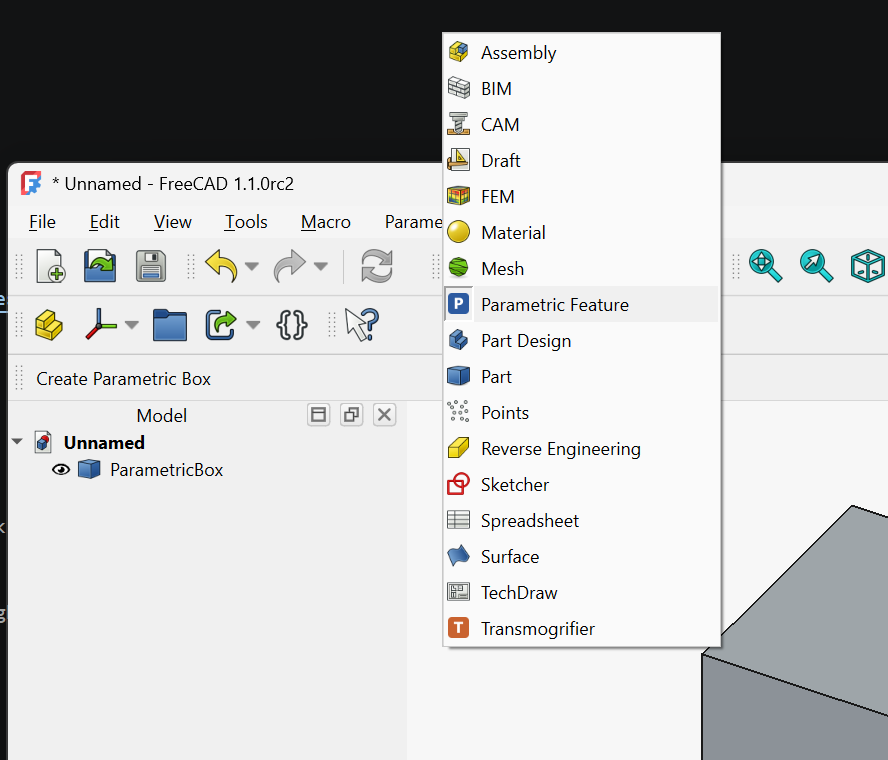
This page walks through the Workbench class, the init_gui.py file that defines it, and how FreeCAD discovers and activates your workbench at runtime. For a complete working example, see the Minimal Workbench demo. This page details the patterns shown there.
Where init_gui.py lives
In a Modern namespaced addon (see Structuring), init_gui.py lives inside your addon’s namespace package:
MyAddon/
├─ package.xml
└─ freecad/
   └─ MyAddon/
      ├─ __init__.py
      └─ init_gui.py
FreeCAD loads every addon’s init_gui.py once at startup, before the user has had a chance to activate any particular workbench. Two consequences:
- Module-level code in
init_gui.pyruns for every user at every FreeCAD launch, whether they ever use your workbench or not. As a best practice this should be kept minimal: class definitions and one registration call. - In the Modern layout the
__file__module attribute is available and points at the deployed path. That is the normal way to locate your addon’s resources (see Icons & resources). If you find older examples of theInitGui.py-based structure you may see various workarounds for a lack of__file__, but those are not necessary if using the Modern layout.
The Workbench class
Your workbench is a class that inherits from FreeCADGui.Workbench:
# freecad/MyAddon/init_gui.py
import FreeCADGui


class MyWorkbench(FreeCADGui.Workbench):
    MenuText = "Destroyer of Things"
    ToolTip = "Basically just ruins everything. You've been warned."
    Icon = _ICON  # see below

    def Initialize(self):
        ...

    def GetClassName(self):
        return "Gui::PythonWorkbench"
In practice you will set at least MenuText, Icon, Initialize, and GetClassName, but there are several other optional entries, plus of course any custom code for your class itself.
Class attributes
MenuText: the label shown in the Workbench selector. Keep it short; it has to fit in the selector combobox.
ToolTip: the hover text. Generally one sentence describing the workbench’s purpose.
Icon: the icon shown next to MenuText in the selector. It must be set before the workbench is registered (before FreeCADGui.addWorkbench() is called), which in practice means setting it as a class attribute using an absolute filesystem path. The idiomatic pattern within the FreeCAD addon ecosystem derives the path from __file__:
# freecad/MyAddon/init_gui.py
import os

import FreeCADGui

_ADDON_ROOT = os.path.dirname(os.path.dirname(os.path.dirname(os.path.abspath(__file__))))
_ICON = os.path.join(_ADDON_ROOT, "Resources", "Icons", "Logo.svg")


class MyWorkbench(FreeCADGui.Workbench):
    Icon = _ICON
    ...
Three dirname() calls because init_gui.py is at <addon-root>/freecad/<ModName>/init_gui.py, which is three directories deep.
Initialize()
Called once, the first time the user activates the workbench (not during startup, so this cost is only incurred by someone actually selecting your Workbench). This is where you:
- Import your command modules. Their top-level
FreeCADGui.addCommand(...)calls register the commands by name as a side effect of import. The linter doesn’t love this, so consider a# noqa: F401(flake8) or# pylint: disable=unused-import(pylint) if you are using one. - Append those commands to toolbars and menus via
self.appendToolbarandself.appendMenu.
def Initialize(self):
    from . import Commands  # registers commands at import time
    self.appendToolbar("My tools", ["MyAddon_First_Command", "MyAddon_Second_Command"])
    self.appendMenu("My Addon", ["MyAddon_First_Command", "MyAddon_Second_Command"])
Deferring the Commands import to inside Initialize() (rather than at the top of init_gui.py) means the command-module code does not run for users who never activate your workbench. On a FreeCAD installation with many addons, this matters.
Activated() and Deactivated()
Called every time the user switches into or out of your workbench, including the first time. Most workbenches leave these empty. Use them for setup and teardown that is scoped to being the active workbench: opening a dock, switching the coordinate system display, and so on.
def Activated(self):
    """Run every time the user switches to this workbench."""
    return

def Deactivated(self):
    """Run every time the user switches away from this workbench."""
    return
Avoid expensive work in Activated unless it is genuinely scoped to “workbench is currently visible”; this method runs on every switch, not just the first time.
ContextMenu(recipient)
Called whenever the user right-clicks inside FreeCAD’s main window. The recipient argument identifies where the click happened, and is one of three capitalized strings:
recipient |
Where the click happened |
|---|---|
"Tree" |
The model tree |
"View" |
The 3D view |
"Sketch" |
The Sketcher editor |
Use self.appendContextMenu to add commands:
def ContextMenu(self, recipient):
    if recipient == "View":
        self.appendContextMenu("My actions", ["MyAddon_Another_Command"])
The capitalization matters. Comparing against "view" matches nothing, and does so silently.
ContextMenu is optional. Most workbenches do not implement it.
GetClassName()
Python workbenches must return the literal string "Gui::PythonWorkbench" from GetClassName. This tells FreeCAD’s C++ core that the workbench is implemented in Python:
def GetClassName(self):
    return "Gui::PythonWorkbench"
Do not change this return value. Changing it will break workbench discovery.
Registering the workbench
At the bottom of init_gui.py, create an instance of your class and pass it to FreeCADGui.addWorkbench:
FreeCADGui.addWorkbench(MyWorkbench())
This line runs when FreeCAD imports init_gui.py at startup. It must come after the class definition.
The <classname> manifest entry
Your package.xml must declare a <workbench> content item whose <classname> matches your Python class:
<content>
    <workbench>
        <classname>MyWorkbench</classname>
    </workbench>
</content>
FreeCAD uses <classname> to dynamically create your workbench’s icon from its Icon attribute. If the name in the manifest does not match the class name in init_gui.py, your workbench will still load, but its icon will not.
Populating the workbench
Two methods from the Workbench class create its UI, both normally called in the Initialize() method.
self.appendToolbar(title, command_names) creates a new toolbar with the given title and populates it with the named commands. Command names are the strings you passed to FreeCADGui.addCommand(). See Gui Commands for how commands are defined and registered.
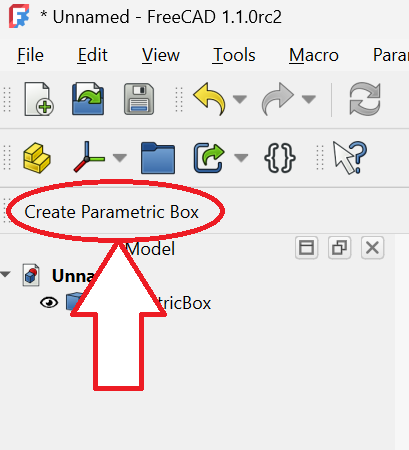
self.appendMenu(menu_path, command_names) creates a menu entry. menu_path is either a string (for a top-level menu) or a list of strings (for a submenu path):
self.appendMenu("My Addon", ["MyAddon_BreakThings"])
self.appendMenu(["File", "Export", "My formats"], ["MyAddon_ExportXYZ"])
Both methods expect the referenced commands to already be registered by the time they run. Importing your Commands module at the top of Initialize() takes care of that.
Keeping startup fast
FreeCAD users expect the application to launch quickly, and you can help with that goal. Every module imported at the top of every addon’s init_gui.py delays that launch. Rules of thumb:
- In
init_gui.pyitself, only import what you need to define the class and compute paths:FreeCADGuiand theos/sysstdlib. Do not importFreeCAD,numpy, or anything heavy unless it is genuinely needed at class-definition time. - Defer imports of your own
Commandsmodule (and anything it pulls in) to insideInitialize(). Initialize()itself should also seek to be reasonably fast. Expensive setup should be guarded byIsActive()checks inside individual commands, or insideActivated()if it only matters when your workbench is the visible one.
Common problems
Icon set too late. If you set self.Icon = ... inside Initialize (rather than on the class body), it is too late: FreeCAD has already read Icon by the time Initialize runs, and you will see the default icon instead of yours. Set Icon as a class attribute.
Commands referenced before they are registered. self.appendToolbar("MyTB", ["MyAddon_Hello"]) will silently do nothing useful if "MyAddon_Hello" has not yet been registered via FreeCADGui.addCommand. Import the module that registers the command before calling appendToolbar.
Heavy top-level imports. If your init_gui.py imports numpy or scipy at the top of the file, every FreeCAD user pays for those imports at launch, whether or not they ever switch to your workbench. Please don’t.
Workbench discovered but nothing happens on activation. If switching to your workbench does nothing visible, check the Report view. A traceback raised from inside Initialize is the most common cause, and FreeCAD will have logged it there.
See also
- Minimal Workbench demo: a complete working workbench with SPDX headers.
- Gui Commands: what the command-name strings in
appendToolbarandappendMenurefer to. - Workbench manipulators: how to contribute toolbars and menus to workbenches you do not own, including without defining a workbench at all.
- Icons & resources: detail on the
Iconpath and addon icon directories. - Structuring: the addon directory layout
init_gui.pylives inside. - Manifest: the
<classname>element inpackage.xml. - Installing your addon locally: how to get your addon into a running FreeCAD to test.